
Reports (Pro)
Reports are a Pro-only feature. Free-tier users see these entries greyed out in the sidebar with a padlock, click one to see pricing.
Revenue report
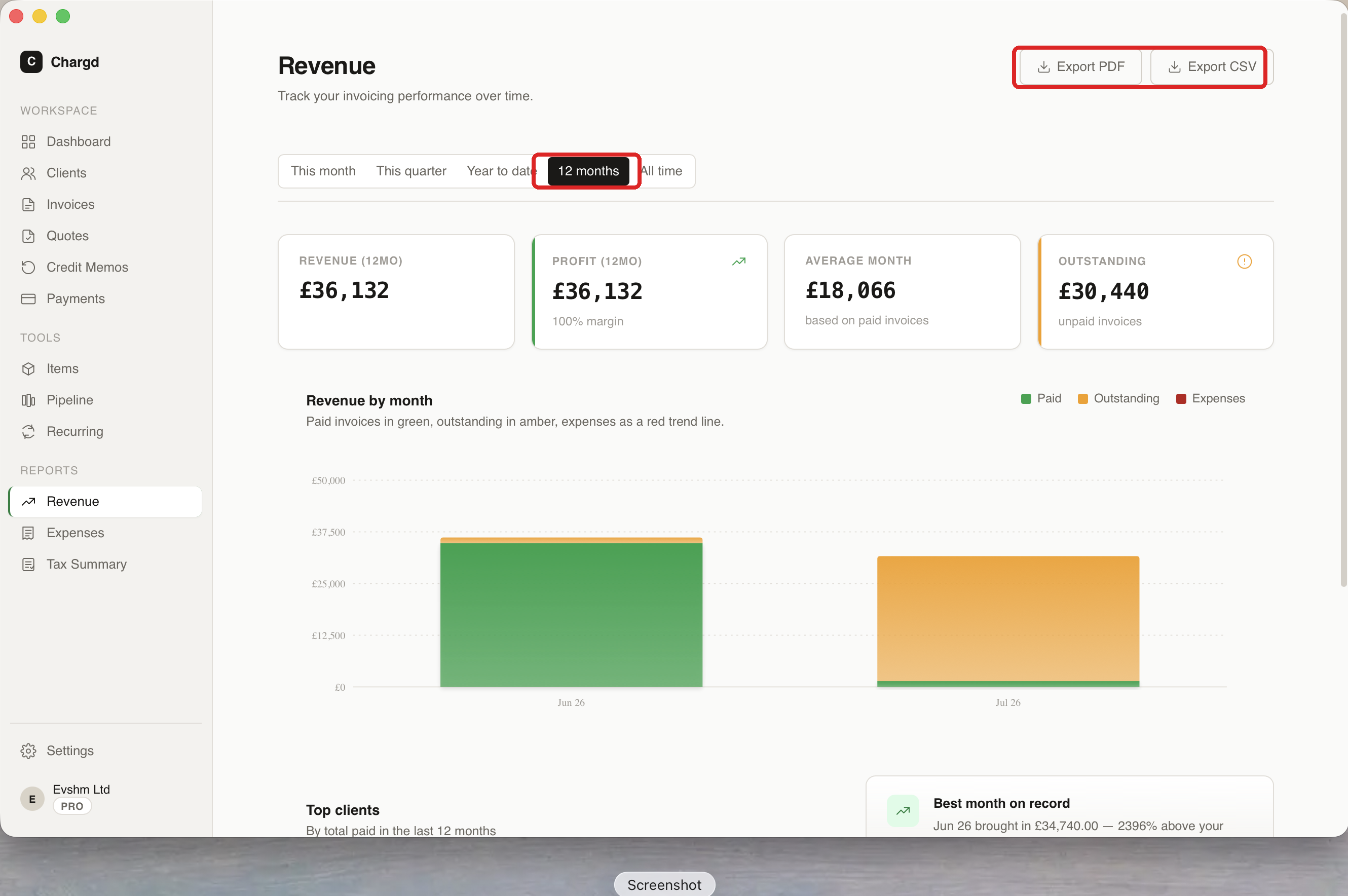
Go to Reports → Revenue (/reports/revenue). Choose a period along the top, This month, This quarter, Year to date, 12 months, or All time, and the report shows:
- Stat cards: revenue, profit, average month, and outstanding for the period.
- A Revenue by month chart, paid invoices in green, outstanding in amber, expenses as a red trend line.
- A Top clients table and a Best month on record callout.
- Export PDF and Export CSV buttons (top right, circled below) to share or archive the report.
Tax summary
Go to Reports → Tax Summary (/reports/tax). Pick a period (circled below) to see total revenue, tax collected, total expenses, and an estimated net tax figure, plus a Tax by Rate breakdown and Expenses by Category table, useful when preparing a tax return or VAT filing. Click Export CSV (also circled) to save the figures.
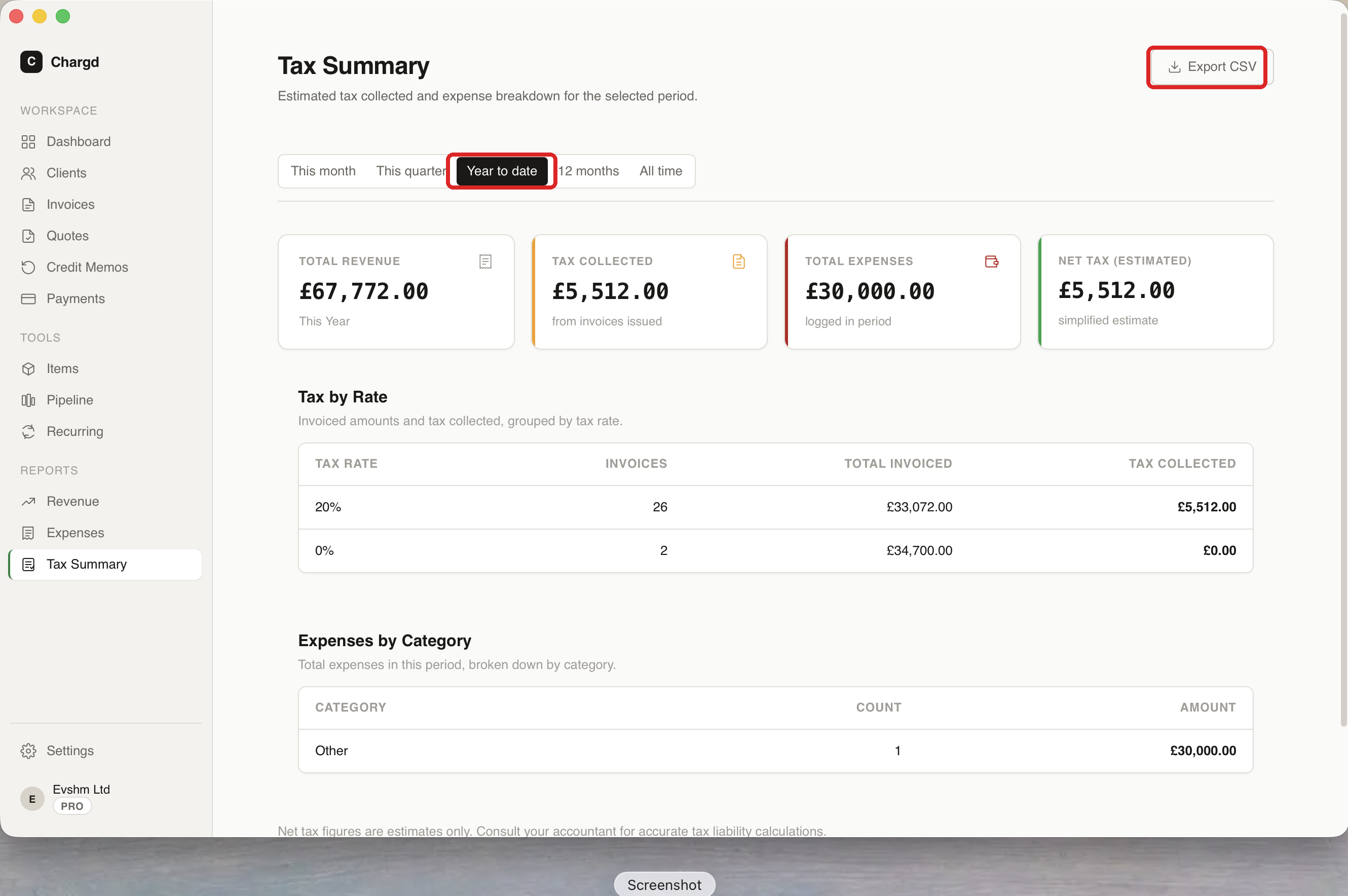
Net tax figures are estimates only, always confirm with your accountant.
← Expense tracker · Back to guide index · Next: Settings →