
Clients
The Clients screen (/clients) is where you manage everyone you invoice.
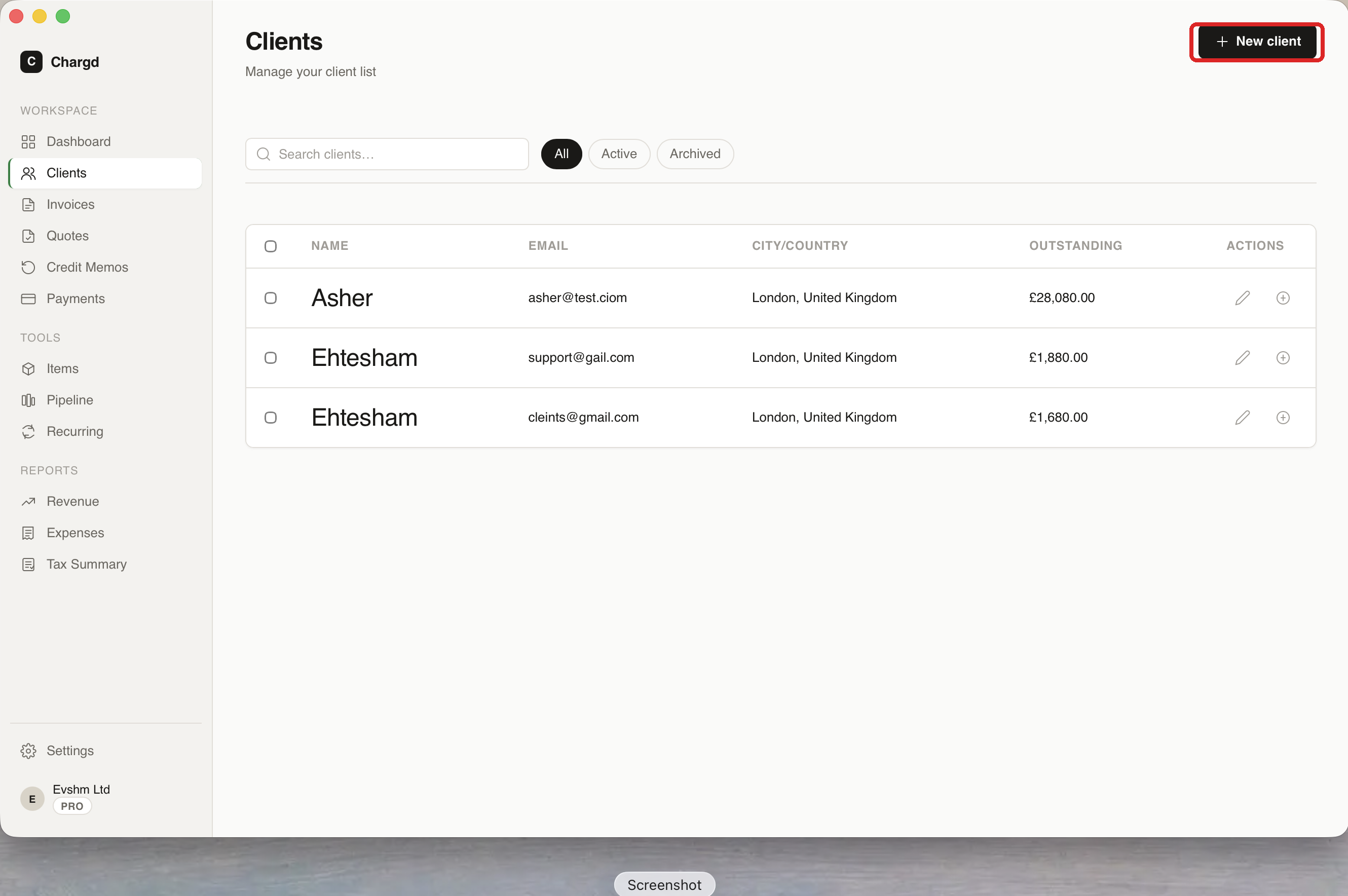 The red circle marks + New client, click it to add someone to bill.
The clients list
The table shows Name, Email, City/Country, and Outstanding balance for each client, with edit and quick-add icons on the right of each row. Use the search field to find a client by name, and the filter chips (All / Active / Archived) to narrow the list.
On the Free plan, once you reach the active-client limit, clicking + New client opens the upgrade prompt instead of the add-client form, archived clients don't count against this limit.
Adding a client
- Click + New client on the Clients list (or + New client from inside the invoice/quote builder's client selector, so you never have to leave the builder).
- Fill in the client form: name, email, phone, address, and any private notes or tags.
- Click Save.
The client form modal, with sample fields filled in
Tags are freeform labels you can use to organize clients (e.g. "retainer", "one-off"). Notes are private, they're for your own reference and never appear on any PDF sent to the client.
Client detail view
Click any client row to open their detail page (/clients/:id). This shows:
- A header card with their contact info and Edit / Archive / Delete buttons.
- Stats: total invoiced, total paid, outstanding balance, and last activity.
- Tabs for Invoices, Quotes, Payments, and Notes, everything related to this client in one place.
A client detail page showing the stats row and the Invoices tab
Editing or archiving a client
- Edit: click the client row's edit icon (on hover) or the Edit button on their detail page to open the same form used for adding a client.
- Archive: removes the client from your active count (useful once you're done working with them) without deleting their history. Archived clients are hidden from the default list view but can still be found via the Archived filter chip.
- Delete: moves the client to Trash, where it can be restored within 30 days.
← Dashboard · Back to guide index · Next: Items library →