
Invoices
Invoices are the core of Chargd. This is where you'll spend most of your time, the builder is designed to be fast, forgiving, and to auto-save so you never lose work.
The invoices list
The Invoices screen (/invoices) shows every invoice you've created, with filter chips for All / Draft / Sent / Partial / Paid / Overdue / Void, plus search, sort, and a date range picker.
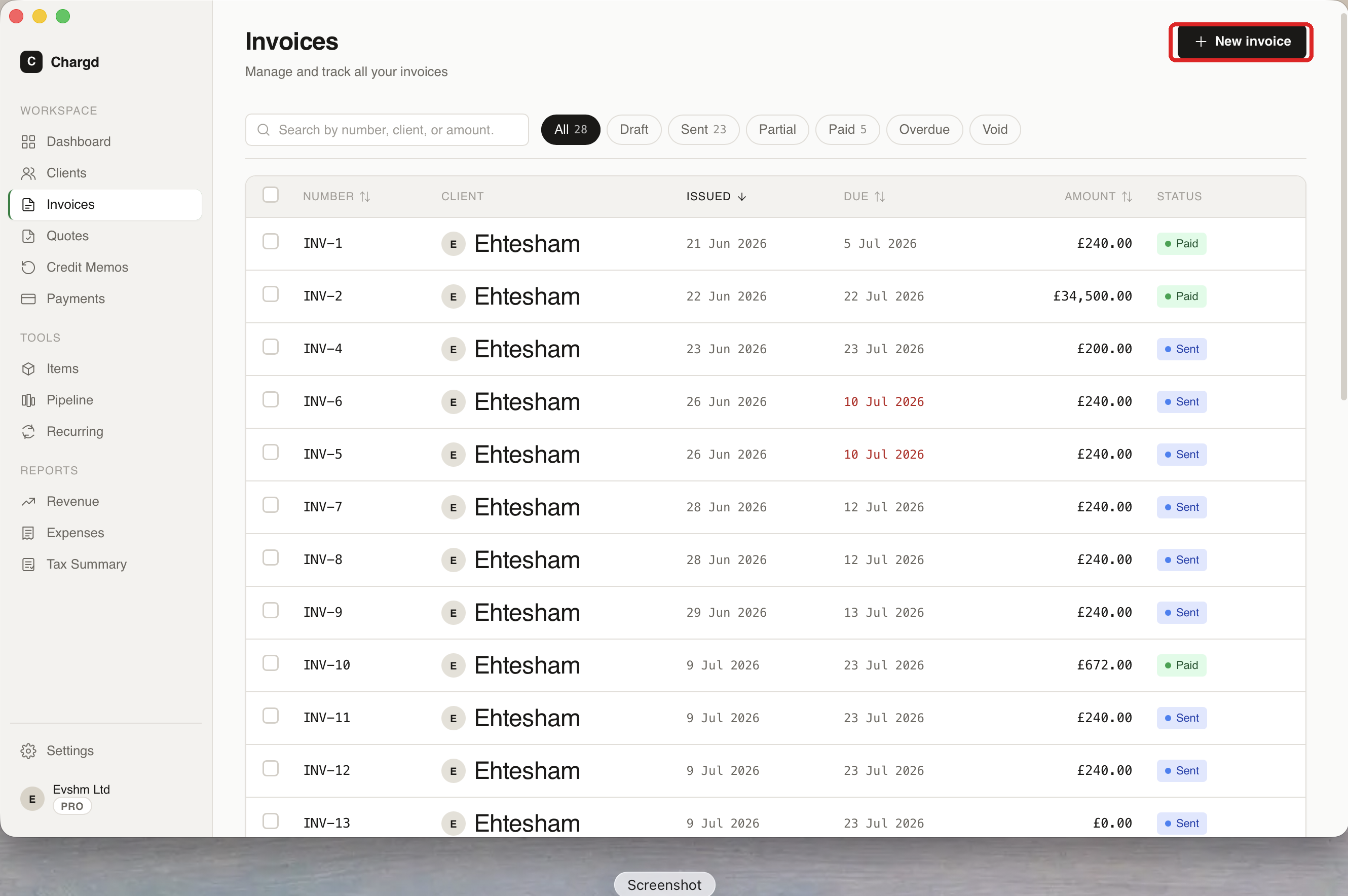 Each filter chip shows a live count (e.g. "Sent 23"). The red circle marks + New invoice.
Status is shown as a colored badge on each row:
| Status | Meaning |
|---|---|
| Draft (grey) | Not yet sent, fully editable |
| Sent (blue) | Sent to the client, awaiting payment |
| Partial (amber) | Some payment received, balance still owed |
| Paid (green) | Fully paid |
| Overdue (red) | Sent, unpaid, and past the due date |
| Void (purple) | Cancelled, terminal, cannot be reopened |
Status is calculated automatically from payments and due dates, you never set it directly (except when voiding).
Select one or more rows with the checkboxes to reveal bulk actions like exporting selected invoices as PDFs or marking them paid.
Creating an invoice
- Click + New invoice on the Invoices list, or press ⌘N anywhere in the app.
- Choose a client from the dropdown (searchable, or click + New client to add one on the spot without leaving the builder).
- Set the issue date (defaults to today) and due date (defaults to issue date + your default payment terms).
- Add an optional PO number and confirm the currency.
- Add line items: click + Add row, then fill in description, quantity, and unit price. The line total is calculated for you. Drag the handle on the left of a row to reorder items. See Items library for how autocomplete speeds this up.
- Set the tax rate if it differs from your default. Subtotal, tax, and grand total update live.
- Add any notes for the client.
Your work saves automatically about 800ms after you stop typing, watch the "Saving…" / "Saved" indicator in the top bar. There's no separate save button to remember.
Invoice builder screen with client, line items, and the live PDF preview panel visible
Sending an invoice
Click Send in the top bar. Chargd validates the invoice (client selected, at least one valid line item, issue date before due date), marks it as Sent, generates the PDF, and opens a dialog where you can:
- Email it: opens your Mac's default mail client with the PDF attached and a professional email template pre-filled.
- Download the PDF: opens a native save dialog (remembers the last folder you used).
- Print it: press ⌘P at any time to open the PDF in Preview (or your default PDF viewer) ready to print.
Once sent, an invoice's template is locked so it always renders identically, and it can no longer be edited directly, you have a 5-second undo window immediately after sending if you need to catch a mistake.
Recording a payment
Open a sent invoice (click its row to go to the read-only Invoice Viewer) and click Record payment. Enter the amount, date, method, and an optional reference, then save. The invoice's status updates automatically, Partial if there's still a balance, Paid once the total is covered.
You can record multiple payments against a single invoice (e.g. a deposit followed by a final payment).
Duplicating an invoice
From the "…" menu on an invoice, choose Duplicate to create a new draft with the same client and line items, handy for repeat work.
Voiding an invoice
From the "…" menu, choose Void and enter a reason. Voided invoices are terminal, they can't be un-voided or edited further.
You can only void an invoice that has no payments recorded. If a client has already paid and you need to cancel, issue a credit memo against it instead.
Searching invoices
Press ⌘K anywhere in the app to open global search across invoices, quotes, and clients by number, client name, or amount.
Choosing a PDF template
Every new invoice uses your default template (set under Settings → Documents), but you can override it for a specific invoice from the builder, see PDF templates & branding.
← Items library · Back to guide index · Next: Quotes →