
Payments
The Payments screen (/payments) is a running list of every payment recorded against every invoice, useful for reconciling what's actually landed versus what's still outstanding.
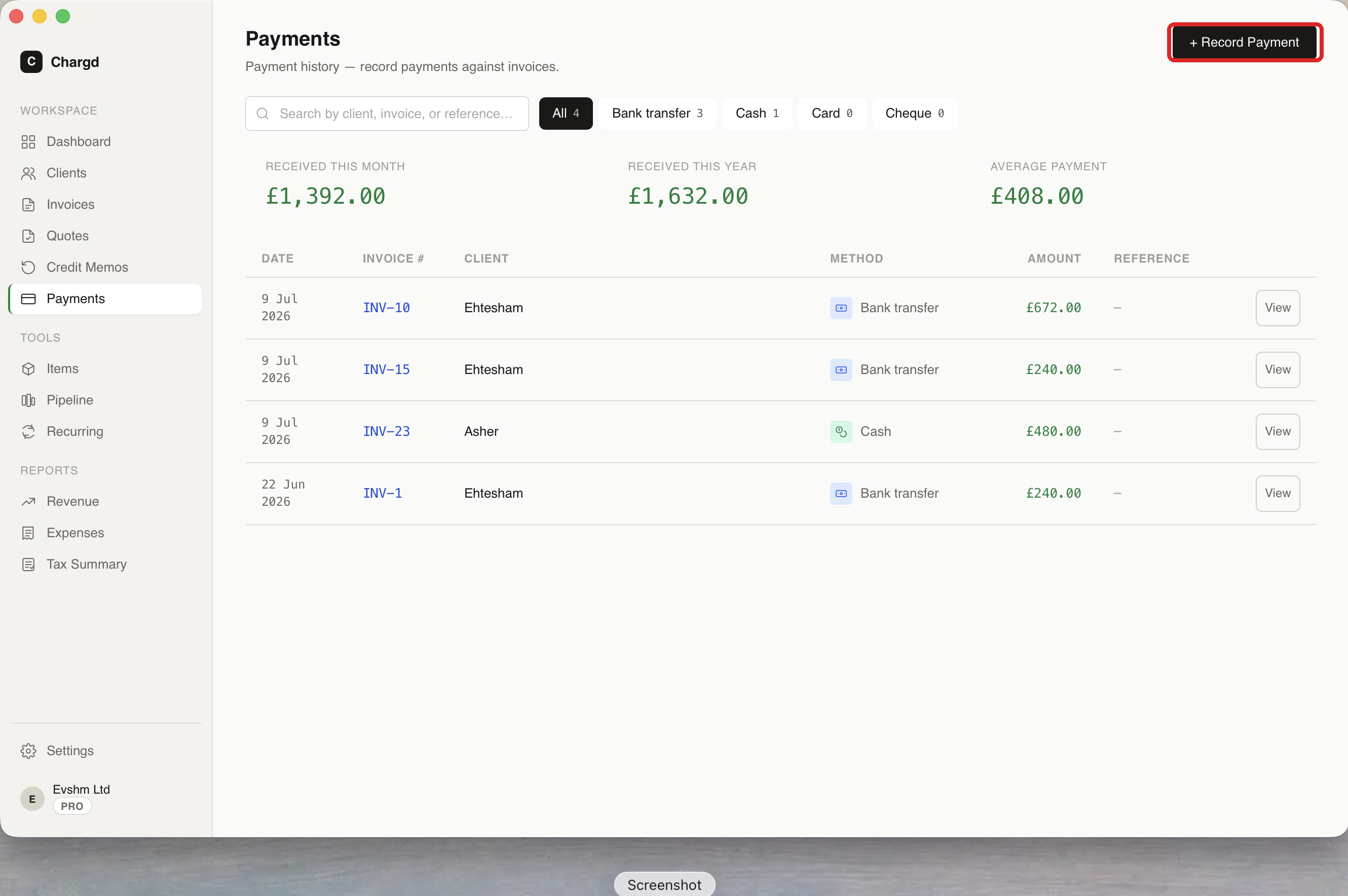
Above the table, three stats summarize your cash flow: Received this month, Received this year, and Average payment. The table itself shows date, invoice number, client, method, amount, and reference, with filter chips for payment method (All / Bank transfer / Cash / Card / Cheque) and a search field. Click View on any row to jump to that invoice.
Recording a payment
Payments are recorded from an invoice, not from this list directly:
- Open the invoice (click it in the Invoices list) to reach its viewer page.
- Click Record payment.
- Enter the amount, date, payment method, and an optional reference (e.g. a bank transfer ID).
- Save.
The invoice's status updates immediately, Partial if a balance remains, Paid once the full amount is covered. You can record several payments against the same invoice, for example a deposit and a final balance.
The "Record payment" modal opened from an invoice viewer
Editing or deleting a payment
Open the payment from the Payments list or the invoice viewer's payment history to edit its details. Deleting a payment is a soft delete, it goes to Trash and the parent invoice's status recalculates automatically (e.g. a Paid invoice can revert to Partial if a payment covering it is removed).
← Credit memos · Back to guide index · Next: PDF templates & branding →