
Sales pipeline (Pro)
The Pipeline screen (/pipeline) is a Kanban board for tracking deals before they become invoices, a Pro-only feature.
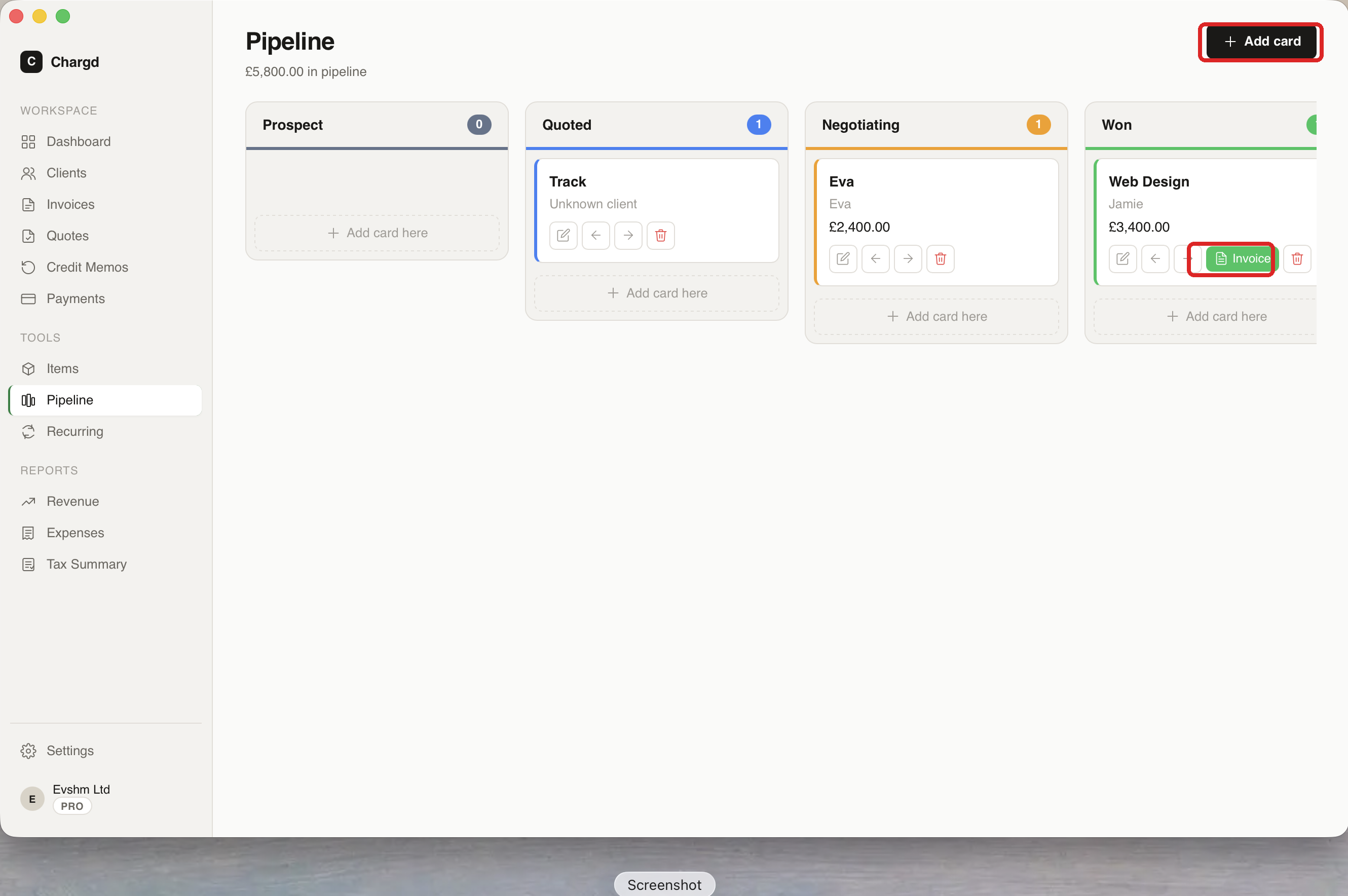 Total pipeline value is shown at the top. The left red circle marks + Add card; the right one marks the Invoice button that appears on cards in the Won column.
The board
Cards move through four stages, left to right: Prospect → Quoted → Negotiating → Won. Each column header shows a running count of cards in that stage.
Adding a card
- Click + Add card (top right, or the Add card here link at the bottom of any column).
- Enter the client (or prospect name if they're not a client yet), a title, and a value.
- Save, the card appears in that column.
Moving a card between stages
Each card has left/right arrow buttons, click them to move the card one stage at a time. Click the pencil icon to edit a card's details, or the trash icon to delete it.
Converting a won deal to an invoice
Once a card reaches the Won column, an Invoice button (circled above) appears on it. Click it to jump straight into the invoice builder with the client and value already filled in.
← PDF templates & branding · Back to guide index · Next: Recurring invoices →