
Dashboard
The Dashboard is the home screen (/), it's what you see every time you open Chargd, and it's designed to tell you where your business stands within a couple of seconds.
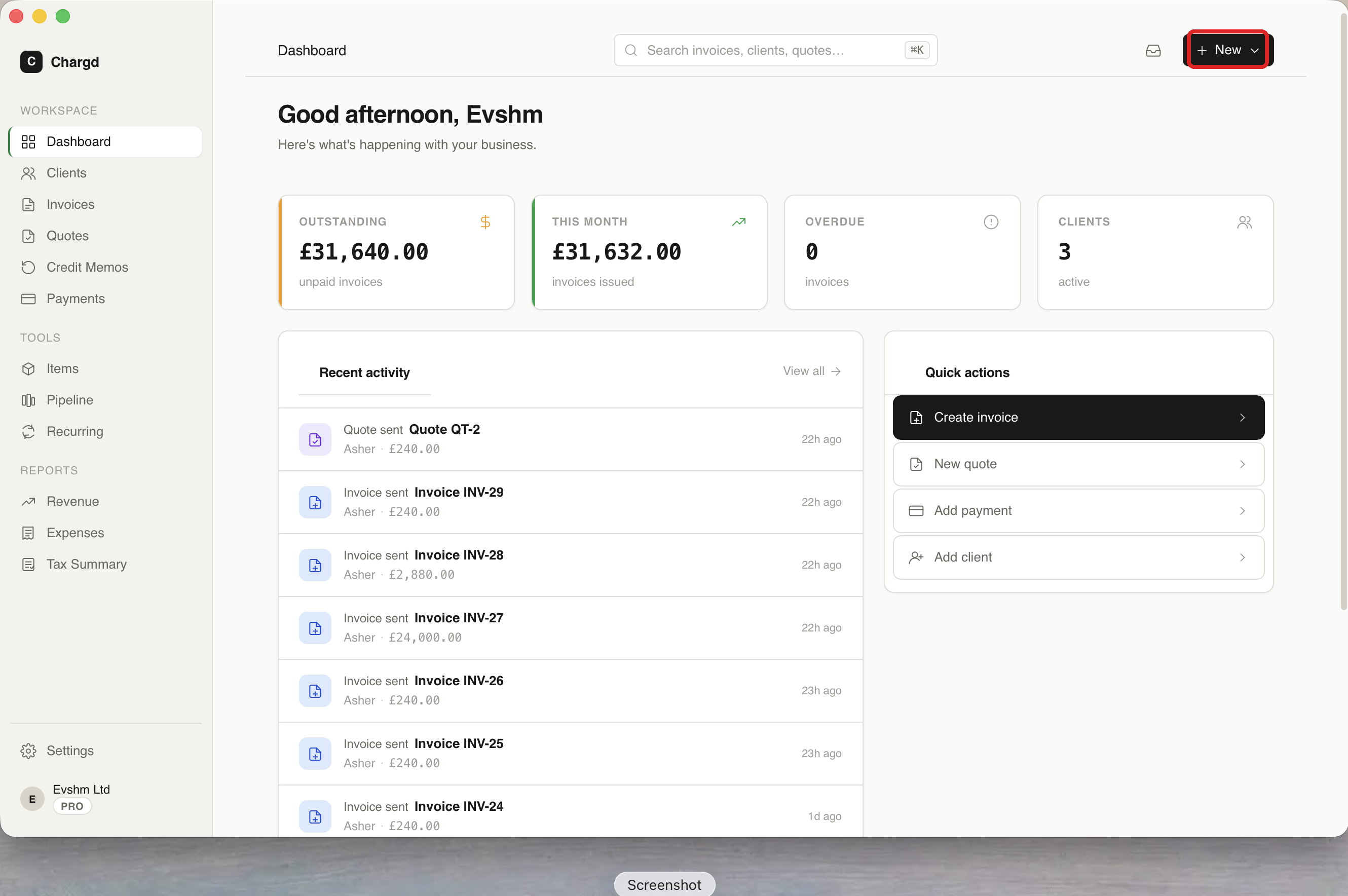 The dashboard right after opening Chargd. The red circle marks the + New button, the fastest way to start an invoice from anywhere in the app.
What's on the dashboard
Top bar: the "Dashboard" title, a search field (click it or press ⌘K to search invoices, clients, and quotes from anywhere in the app), and the + New button (circled above) for quickly creating an invoice, quote, or client.
Stat cards (top row):
| Card | What it shows |
|---|---|
| Outstanding | Total amount across all unpaid invoices |
| This month | Total invoiced this calendar month |
| Overdue | Count of overdue invoices |
| Clients | Your active client count |
Click any stat card to jump to the filtered list behind it.
Recent activity (left column): a running feed of invoices and quotes as they're sent, most recent first. Click View all to see the full history, or click any row to open that document directly.
Quick actions (right column): one-click shortcuts to Create invoice, New quote, Add payment, and Add client without leaving the dashboard.
First time on the dashboard
If you haven't created anything yet, your stat cards will read zero and the activity feed will be empty. Use Quick actions or the + New button to get your first invoice out the door, see the quick start.
← Getting started · Back to guide index · Next: Clients →