
Backups, exports & Trash
Backup, restore, import, and export all live under Settings → Data.
Backing up your data
- Go to Settings → Data.
- Click Export Backup (circled below).
- Choose where to save the file in the native save dialog. The tab shows the timestamp of your last backup, and a Show backup in Finder link once one exists.
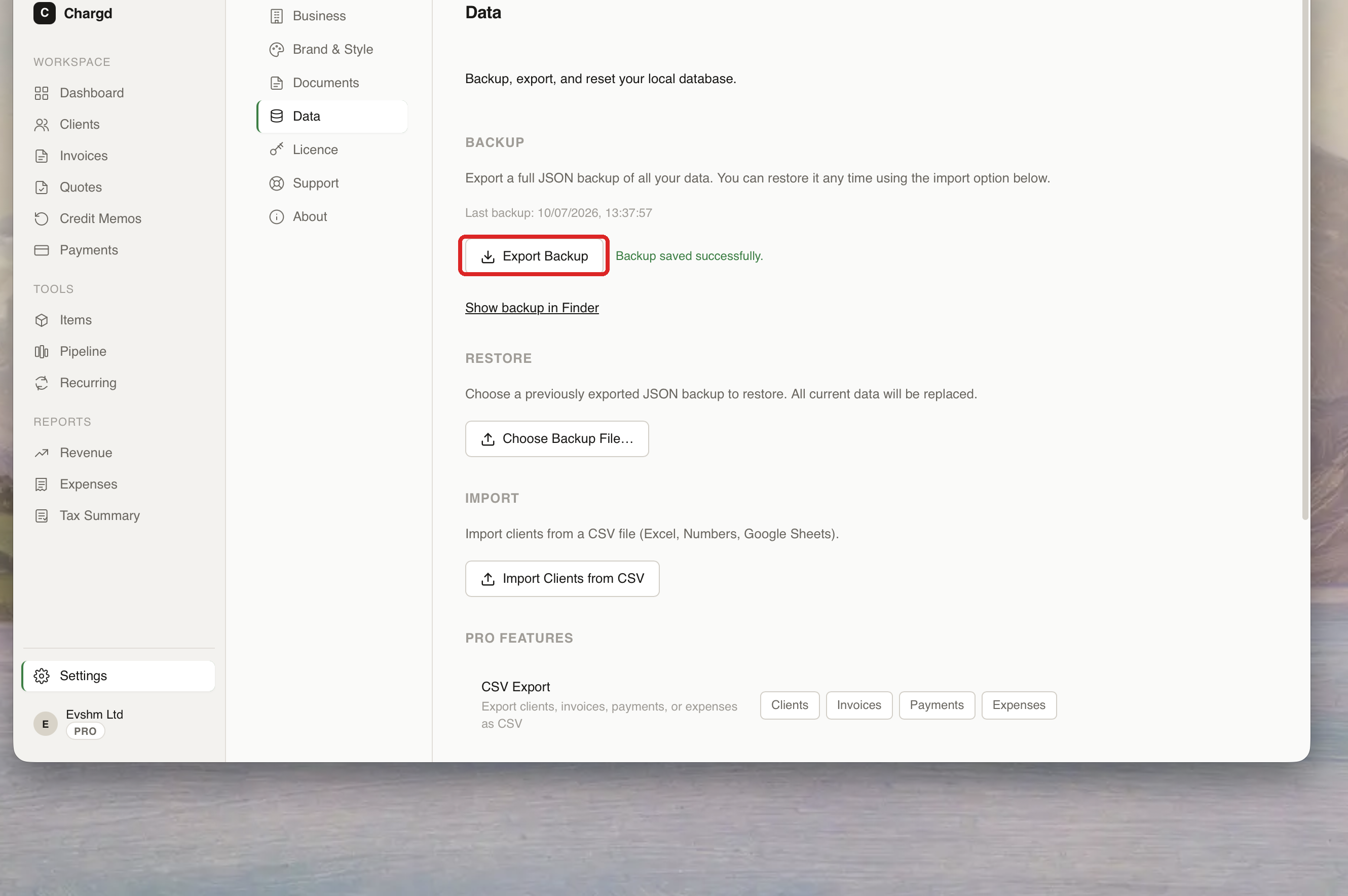
This creates a single JSON file containing everything, clients, invoices, quotes, payments, items, and settings, with a checksum so Chargd can verify the file wasn't corrupted before restoring it. Because your whole database is plain SQLite and this backup is plain JSON, your data is never locked into a proprietary format.
Since Chargd never syncs to a server, this manual export is your way to move data to a new machine or protect against data loss, make a habit of it, especially before a major update.
Restoring from a backup
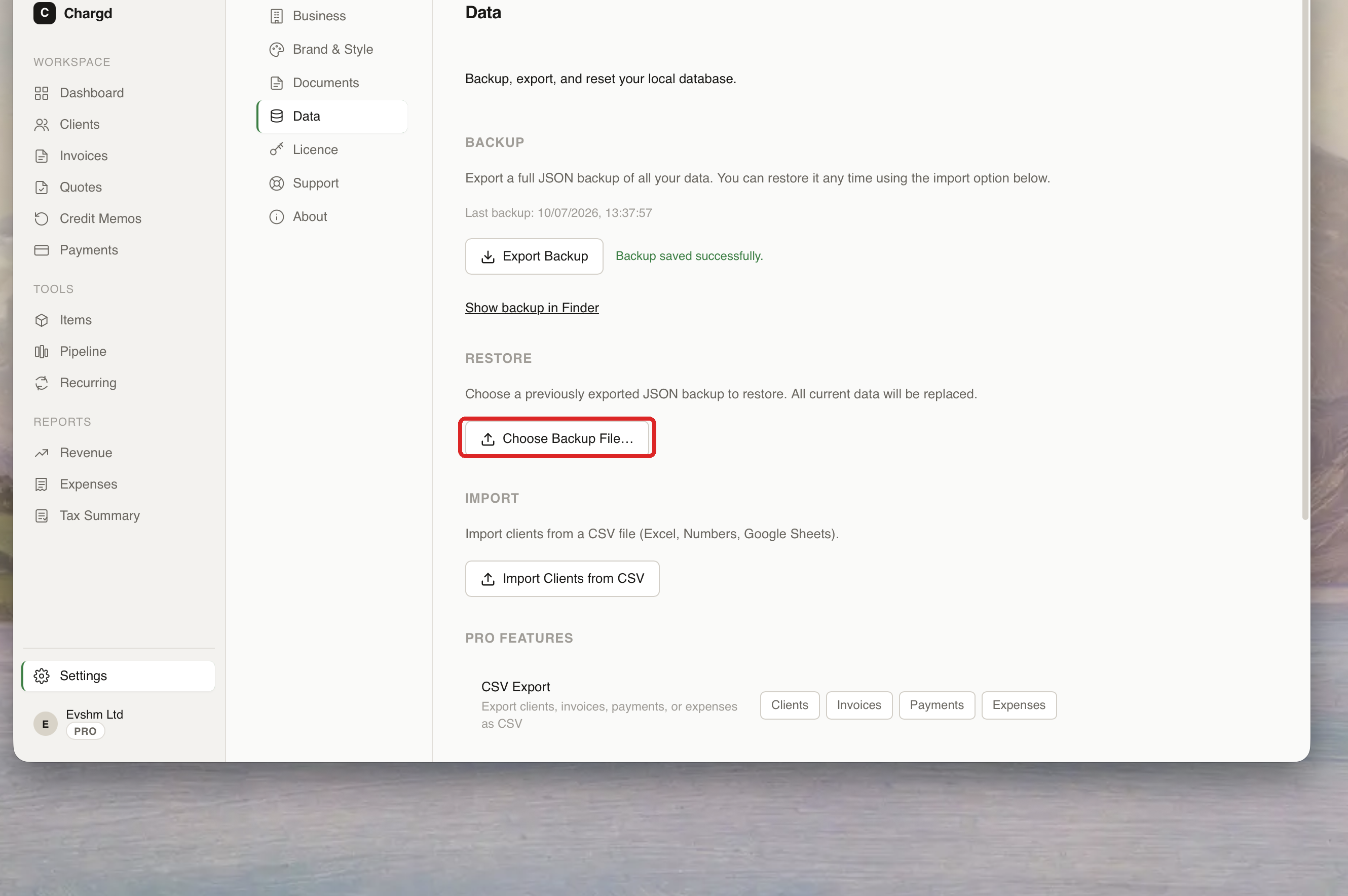
- Go to Settings → Data and click Choose Backup File… (circled below).
- Pick a previously exported JSON backup. All current data will be replaced, so make sure you're restoring the right file.
Importing clients from a CSV
Under Import, click Import Clients from CSV to bring in a client list from Excel, Numbers, or Google Sheets.
Exporting to CSV (Pro)
Under Pro Features, export Clients, Invoices, Payments, or Expenses as a CSV file, useful for handing data to an accountant or importing into another tool.
Trash
Deleting a client, invoice, quote, item, or payment moves it to Trash rather than removing it immediately, where it's recoverable for a limited time before being permanently purged.
Trash view, still needed
← Settings · Back to guide index · Next: Keyboard shortcuts →